Using your Namecheap Private Email is straightforward and secure. You can set it up on desktop clients, Gmail, or mobile devices—or simply log in anytime online via PrivateEmail Webmail. Below is a step-by-step guide with official settings and references.
Essential Server Settings
To configure your Private Email correctly, use these values:
-
Incoming & Outgoing Server:
mail.privateemail.com -
Incoming (IMAP): Port 993 (SSL) or 143 (TLS/STARTTLS)
-
Incoming (POP3): Port 995 (SSL)
-
Outgoing (SMTP): Port 465 (SSL) or 587 (TLS/STARTTLS)
-
Authentication: Required for both incoming and outgoing mail
-
SPA (Secure Password Authentication): Must be disabled
📖 Official Namecheap Guide – General Configuration
Easy Setup for Desktop Outlook
New Outlook for Windows:
-
Open Outlook → Add Account.
-
Enter your Private Email address and click Show more options.
-
Configure IMAP/SMTP manually:
-
Incoming (IMAP):
mail.privateemail.com, Port 993 (SSL) -
Outgoing (SMTP):
mail.privateemail.com, Port 465 (SSL) or 587 (TLS) -
Username: Full email address
-
Password: Your mailbox password
-
-
Click Continue to complete setup.
📖 Namecheap Guide – New Outlook Setup
Outlook 2019 Quick Setup:
-
Go to File → Info → Add Account.
-
Enter your Private Email and click Connect.
-
Outlook may auto-detect the correct server values.
📖 Namecheap Guide – Outlook 2019 Setup
Seamless Integration with Gmail (Gmail Fetcher)
Want to manage your Private Email directly in Gmail? You can fetch mail into Gmail and also send from your Private Email address.
Fetch Incoming Mail
-
In Gmail, go to Settings → Accounts and Import → “Add a mail account”.
-
Enter your Private Email address.
-
Select Import emails from my other account (POP3).
-
Use these values:
-
POP3 Server:
mail.privateemail.com -
Port: 995 (SSL enabled)
-
Username: Full Private Email
-
Password: Your password
-
Check options like “Leave copy on server” or “Label incoming messages” if desired.
-
Send Email as Private Email
-
Gmail will prompt “Do you want to send mail as this address?” → Choose Yes.
-
Outgoing SMTP values:
-
SMTP Server:
mail.privateemail.com -
Port: 465 (SSL) or 587 (TLS)
-
Username: Full Private Email
-
Password: Your password
-
-
Verify using the confirmation email Gmail sends to your Private Email inbox.
📖 Namecheap Guide – Gmail Fetcher Setup
Mobile Devices (iPhone & Android)
iPhone (Mail App):
-
Go to Settings → Mail → Accounts → Add Account → Other.
-
Enter your name, Private Email, and password.
-
Select IMAP and input the same server settings.
-
Save and test.
📖 Namecheap Guide – iPhone Setup
Android (Native Mail App):
-
Open the Email app → Add Account.
-
Choose Manual Setup.
-
Enter IMAP or POP3 details with
mail.privateemail.com. -
Add outgoing SMTP settings.
📖 Namecheap Guide – Android Setup
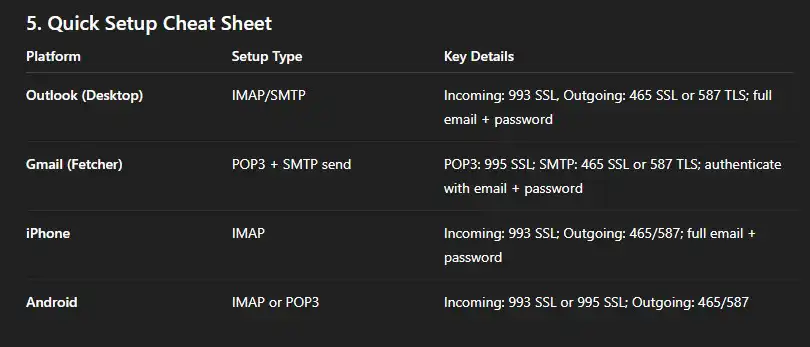
Quick Setup Cheat Sheet
| Platform | Setup Type | Key Details |
|---|---|---|
| Outlook (Desktop) | IMAP/SMTP | Incoming: 993 SSL, Outgoing: 465 SSL or 587 TLS; full email + password |
| Gmail (Fetcher) | POP3 + SMTP send | POP3: 995 SSL; SMTP: 465 SSL or 587 TLS; authenticate with email + password |
| iPhone | IMAP | Incoming: 993 SSL; Outgoing: 465/587; full email + password |
| Android | IMAP or POP3 | Incoming: 993 SSL or 995 SSL; Outgoing: 465/587 |
Final Thoughts
With these steps, you can connect your Namecheap Private Email across Gmail, Outlook, iPhone, and Android with ease. If you ever need quick access, log in anytime at PrivateEmail.com.
For detailed step-by-step screenshots and troubleshooting, always refer to the official Namecheap guides linked above. If you need any assistance, call us at 832-266-7209 or 979-250-7486. WevTEC serves nationwide to repair websites, design mobile-responsive websites, provide SEO for website optimization, and improve Google ranking—helping your business grow online with confidence.